
VGS Integration
Viewing Card Details
Lynx uses Very Good Security (VGS) to securely display sensitive card details such as card number and CVC in your application.
Instead of sending sensitive card data directly through your frontend, Lynx provides a secure client-side component that displays card details through VGS.
How it works
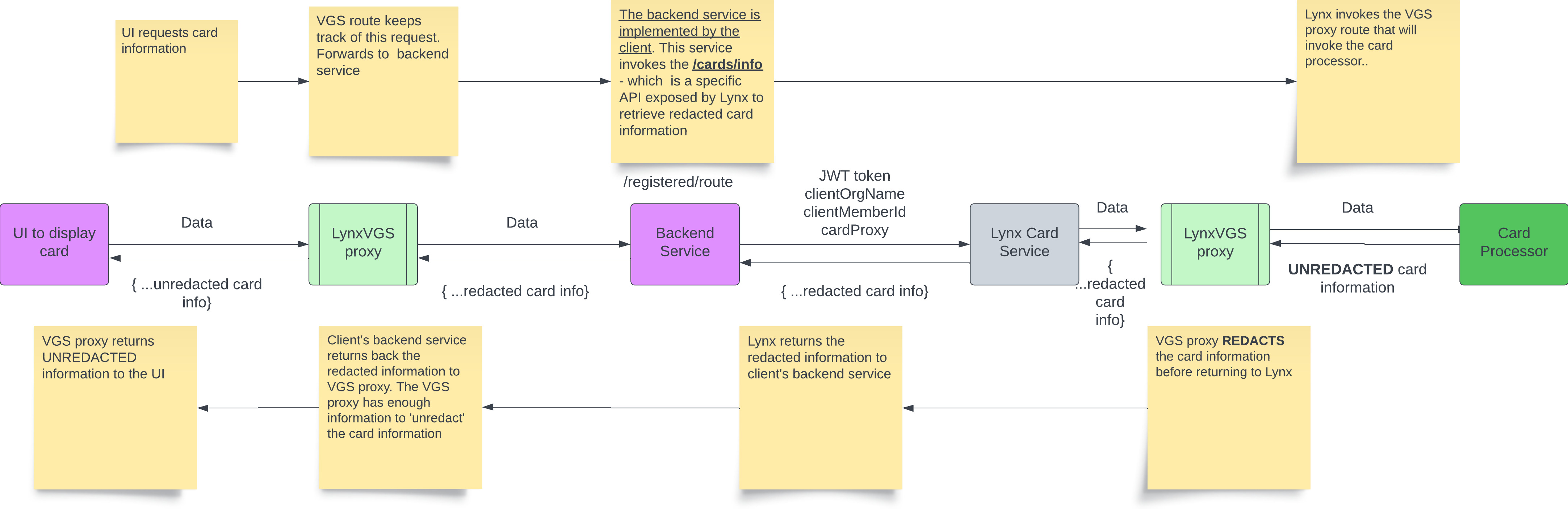
At a high level:
- Your frontend embeds the LynxVGS component.
- That component sends a request through VGS, using your assigned
VAULT_ID. - VGS securely calls your backend.
- Your backend calls the Lynx card details API.
- The sensitive value is returned securely and rendered inside a VGS-managed iframe in your UI.
This allows sensitive card data to be displayed without exposing it directly in your frontend application.
Before you begin
To use this integration, you will need:
- A registered backend route configured with Lynx
- A
VAULT_IDprovided by Lynx - The correct environment:
sandboxfor non-productionlivefor production
- TLS 1.2 support on your backend
Step 1: Register your backend route
Before you can display card details, Lynx must register your inbound route with VGS.
This route tells VGS where to send requests when the frontend asks to reveal sensitive card information.
What to provide to Lynx
Please contact your Client Success Manager and provide:
- Your backend service host
Example:https://myhost.acmecorp.co - The path pattern(s) that VGS should match before invoking your backend
Example:/v2/accountservice/card/details
Example
If you register the pattern:
/v2/accountservice/cards/.*and your frontend calls:
/v2/accountservice/cards/cardProxy123that request matches the registered pattern, so VGS will invoke your backend.
Step 2: Get your VAULT_ID
Once your route is registered, Lynx will provide a VAULT_ID.
Important notes
- Each
VAULT_IDis tied to a single domain or subdomain. - Each vault has its own dedicated VGS subdomain.
- Your frontend uses this
VAULT_IDto initialize the LynxVGS client.
Example
If your VAULT_ID is:
tnttaottxl4VGS will provide a base URL similar to:
https://tnttaottxl4-....sandbox.verygoodvault.comIn this example:
sandboxis the environmentverygoodvault.comis the VGS domain
Use:
sandboxin non-production environmentslivein production
Step 3: Add the LynxVGS script to your page
Add the following script to your page:
window.LynxVGS={create:function(e){this.instance=window.VGSShow.create(e.vaultId,()=>{}).setEnvironment(e.env)},show:function(e){let t={name:e.name,method:e.method,path:e.path,htmlWrapper:"text",headers:e.headers,jsonPathSelector:e.json};e.payload&&(t.payload=e.payload),e.replace&&(t.serializers=[this.instance.SERIALIZERS.replace(e.replace[0],e.replace[1])]);let s=e.elementId,a=e.css,r=this.instance.request(t);if(r.render(s,a),r.on("revealSuccess",e.success),r.on("requestFail",e.error),e.copy){let c=this.instance.copyFrom(r,{text:e.copy.text},e.copy.onCopy);c.render(e.copy.id,e.copy.css)}}},(script=document.createElement("script")).src="https://js.verygoodvault.com/vgs-show/2.1.0/show.js",script.type="text/javascript",script.defer=!0,document.getElementsByTagName("head").item(0).appendChild(script);Step 4: Add a placeholder element in your HTML
Create an empty element where the secure VGS iframe will be rendered.
Example:
<div id="lynx-vgs-secret">
  <div id="secret-card-number"></div>
  <div id="secret-cvc"></div>
</div>
Step 5: Initialize LynxVGS
Initialize the LynxVGS client with your VAULT_ID and environment.
window.LynxVGS.create({
  vaultId: <VAULT_ID>,
  env: <ENVIRONMENT>
});
Parameters
| Parameter | Description |
|---|---|
VAULT_ID | The vault ID provided by Lynx for your registered route |
ENVIRONMENT | Use sandbox for non-production and live for production |
Step 6: Request and display card details
Call window.LynxVGS.show() to make a request through VGS to your backend and render the returned value securely in your UI.
The example below retrieves the CVC:
window.LynxVGS.show({
  headers: headers,
  name: 'data-code',
  method: 'GET',
  path: '/v2/accountservice/cards/' + cardProxy,
  json: 'data.cvc',
  elementId: '#secret-cvc',
  replace: ['(\\d{4})(\\d{4})(\\d{4})(\\d{4})', '$1 $2 $3 $4'],
  css: {
    '@font-face': {
      'font-family': 'Maven Pro',
      'font-style': 'normal',
      'font-weight': '400',
      'font-display': 'swap',
      'src': 'url(<https://fonts.gstatic.com/s/mavenpro/v33/7Au9p_AqnyWWAxW2Wk3GzWQI.woff2>) format("woff2")',
      'unicode-range': 'U+0400-045F, U+0490-0491, U+04B0-04B1, U+2116'
    },
    'font-family': '"Maven Pro", monospace',
    'color': '#fff',
    'font-size': '18px',
    'font-weight': '400'
  },
  success: () => console.log('success'),
  error: (e) => alert(e.message),
  copy: {
    id: '#copy-number-btn',
    text: 'Copy Card Number',
    css: {
      'color': '#000',
      'backgroundColor': '#fff'
    },
    onCopy: (status) => {
      console.log('copy status:', status);
    }
  }
});
Parameters for show()
show()| Parameter | Description |
|---|---|
headers | Headers to include in the request |
name | A unique name for the request |
method | HTTP method: GET or POST |
path | The backend path to call. This must match your registered route pattern |
payload | Request body for POST requests |
json | JSON path to the value returned by your backend |
elementId | CSS selector for the element where the secure iframe will be rendered |
replace | Optional regex-based formatting for the displayed value |
css | Styles applied to the rendered content |
success | Callback fired when the reveal succeeds |
error | Callback fired when the request fails |
copy | Optional configuration for copy-to-clipboard functionality |
Example: Showing card number instead of CVC
To display the card number instead of the CVC, update the json field so it points to data.cardNumber, and update the elementId so the value renders into the correct placeholder element in your page.
Then call window.LynxVGS.show() like this:
window.LynxVGS.show({
  headers: headers,
  name: 'card-number',
  method: 'GET',
  path: '/v2/accountservice/cards/' + cardProxy,
  json: 'data.cardNumber',
  elementId: '#secret-card-number',
  replace: ['(\\d{4})(\\d{4})(\\d{4})(\\d{4})', '$1 $2 $3 $4'],
  css: {
    '@font-face': {
      'font-family': 'Maven Pro',
      'font-style': 'normal',
      'font-weight': '400',
      'font-display': 'swap',
      'src': 'url(<https://fonts.gstatic.com/s/mavenpro/v33/7Au9p_AqnyWWAxW2Wk3GzWQI.woff2>) format("woff2")',
      'unicode-range': 'U+0400-045F, U+0490-0491, U+04B0-04B1, U+2116'
    },
    'font-family': '"Maven Pro", monospace',
    'color': '#fff',
    'font-size': '18px',
    'font-weight': '400'
  },
  success: () => console.log('success'),
  error: (e) => alert(e.message),
  copy: {
    id: '#copy-number-btn',
    text: 'Copy Card Number',
    css: {
      'color': '#000',
      'backgroundColor': '#fff'
    },
    onCopy: (status) => {
      console.log('copy status:', status);
    }
  }
});
In this example:
json: 'data.cardNumber'tells LynxVGS to display the card number from the backend responseelementId: '#secret-card-number'tells LynxVGS where to render the secure iframe in your UIreplaceformats the returned card number into grouped digits for display
What your backend needs to do
The backend endpoint you registered with Lynx should call the Lynx API that returns the card details needed for display.
Endpoint
For sandbox:
https://sandbox.lynx-fh.co/cards/infoMethod
Use a GET request.
Required parameters
| Parameter | Description |
|---|---|
clientOrgName | Your client organization name |
clientMemberId | Your internal member identifier |
cardProxy | The card identifier returned when the card was created |
Example response
Your backend should return a JSON response like this:
{
  "data": {
    "cardNumber": "<redacted number>",
    "cvc": "<redacted cvc>"
  }
}
How the frontend uses this response
The json field in window.LynxVGS.show() tells LynxVGS which value to display from the response.
For example:
- Use
json: 'data.cvc'to display the CVC - Use
json: 'data.cardNumber'to display the card number
Important notes
- This endpoint is intended specifically for retrieving card display data through this integration flow.
- It is not listed in the public API Reference section.
- Other Lynx card APIs may return non-sensitive card metadata such as:
- card proxy
- last four digits
- issue date
- expiration month/year
Authentication and security notes
- VGS forwards your authentication headers to your backend.
- Sensitive card values are rendered inside a VGS-managed iframe.
- Only TLS 1.2 is currently supported, so your backend must support TLS 1.2.
End-to-end flow summary
- You register a backend route with Lynx.
- Lynx provides your
VAULT_ID. - You embed the LynxVGS script in your frontend.
- Your frontend calls
LynxVGS.show(). - VGS sends the request to your backend.
- Your backend calls Lynx to fetch the card detail.
- VGS securely renders the value in your UI.
Common mistakes
Here are the most common issues to watch for when integrating LynxVGS.
1. The path does not match the registered route
path does not match the registered routeThe path you pass to window.LynxVGS.show() must match the route pattern that was registered with Lynx.
For example, if your registered route is:
/v2/accountservice/cards/.*then a request like this will match:
path: '/v2/accountservice/cards/cardProxy123'But a request like this will not match:
path: '/card/details?cardProxy=' + cardProxyunless /card/details was the route that was actually registered.
If the path does not match the registered route, VGS will not invoke your backend.
2. Using the wrong json selector
json selectorThe json value must point to the exact field in your backend response that you want to display.
For example, if your backend returns:
{
  "data": {
    "cardNumber": "<redacted number>",
    "cvc": "<redacted cvc>"
  }
}
then:
- use
json: 'data.cardNumber'to display the card number - use
json: 'data.cvc'to display the CVC
If the selector does not match the response shape, nothing will be displayed.
3. The target element does not exist in the page
The value is rendered into the element identified by elementId.
For example, if you use:
elementId: '#secret-card-number'then your page must include:
<div id="secret-card-number"></div>If that element does not exist, the secure iframe cannot be rendered.
4. Using the wrong environment
Make sure you initialize LynxVGS with the correct environment:
- use
sandboxfor non-production - use
livefor production
Example:
window.LynxVGS.create({
  vaultId: <VAULT_ID>,
  env: 'sandbox'
});
Using the wrong environment can cause requests to fail or point to the wrong vault.
5. Using the wrong VAULT_ID
VAULT_IDYour VAULT_ID is tied to the registered domain or subdomain.
If the wrong VAULT_ID is used, LynxVGS will not be able to communicate with the correct VGS vault.
Always use the VAULT_ID provided for your specific registered route and environment.
6. Returning a response in the wrong format
Your backend response should match the shape expected by the frontend.
Example:
{
  "data": {
    "cardNumber": "<redacted number>",
    "cvc": "<redacted cvc>"
  }
}
If your frontend uses:
json: 'data.cardNumber'but your backend returns:
{
  "cardNumber": "<redacted number>"
}
then the selector will not match and the value will not render.
7. Forgetting required request parameters
Your backend call to Lynx should include the required parameters:
clientOrgNameclientMemberIdcardProxy
If any of these values are missing or invalid, the backend may not be able to retrieve the expected card details.
8. Using unsupported TLS versions
Only TLS 1.2 is currently supported for this integration.
If your backend does not support TLS 1.2, requests may fail during transport.
9. Expecting card data outside the secure iframe
Sensitive values are rendered inside a VGS-managed iframe.
Do not expect the raw card number or CVC to be directly inserted into your DOM as plain text. Your integration should treat the rendered value as secure iframe content managed by VGS.
10. Misconfiguring copy-to-clipboard support
If you enable the copy option, make sure the copy button target exists in your page.
For example, if you use:
copy: {
  id: '#copy-number-btn',
  text: 'Copy Card Number'
}
then your page must include an element matching:
<div id="copy-number-btn"></div>If that element is missing, the copy control cannot be rendered.
Troubleshooting checklist
If the value is not appearing in the UI, verify the following:
- the correct
VAULT_IDis being used - the correct environment is set
- the
pathmatches the registered route - the target element exists in the page
- the backend response matches the
jsonselector - the required parameters are being passed
- the backend supports TLS 1.2
Need help?
For route registration, VAULT_ID, or environment setup, please contact your Client Success Manager.
Updated 6 months ago